What is Guesstimate?
Guesstimate is a tool that helps you organize your project time while giving you both flexibility and precision in calculating estimates.
How it works?
Guesstimate uses complex calculations based on user's development time, preferences and payment settings and shows the total amount of hours and money required for the task as well as detailed information about each individual criterion.
Configurations
Settings
Settings are located in the top navigation bar illustrated with this icon.
Settings Tabs
User Preferences
You can select what type of user you are (Underestimator/Overestimator) and pick your currency by choice.
Criteria
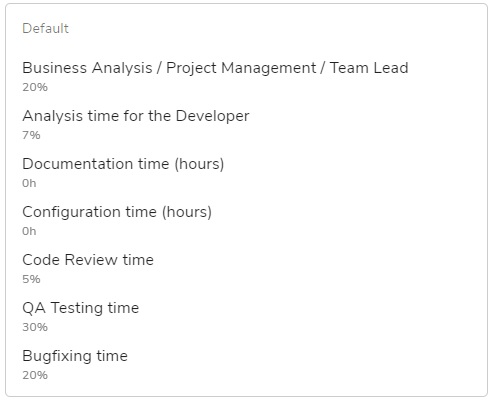
Criteria are all the different tasks that have to be done apart from coding. The user has the ability to add/remove/edit criteria and customize their percentage/hour affection on the algorithm. They can also be assigned to a certain role (e.g. PM / TL / Developer).
Default Crieria:
Task Types
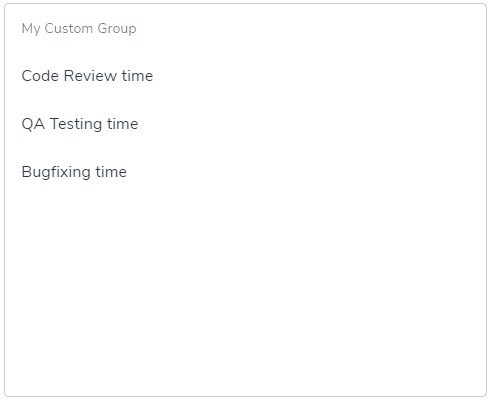
Task types combine criteria and store them as a group for quicker access the next time you make an estimate.
Example:
Roles
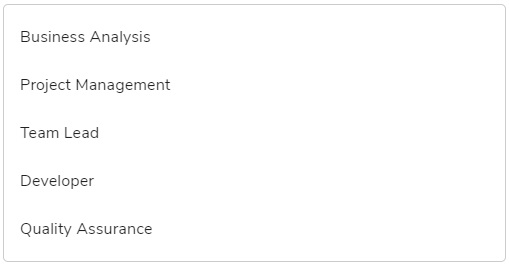
All the roles that will be used for making the estimate. You can control the current roles in your project from this tab.
Roles by default:
Projects
Projects allow separating estimates and sprints into groups. In the Projects tab you can create a new project or edit an existing one.
Let's Guesstimate!
In this section you will find more information about how to use the tool.
Create your first estimate
- Navigate to the home page.
- Click on the button.
- Fill in the form
- (Optional) Unlock your desired criteria and edit their values
- Click Save
Organize your project
Guesstimate can be used with multiple projects at once providing the ability to use separate sprints and estimates for each individual project.
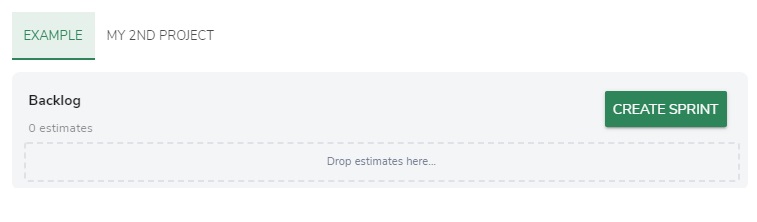
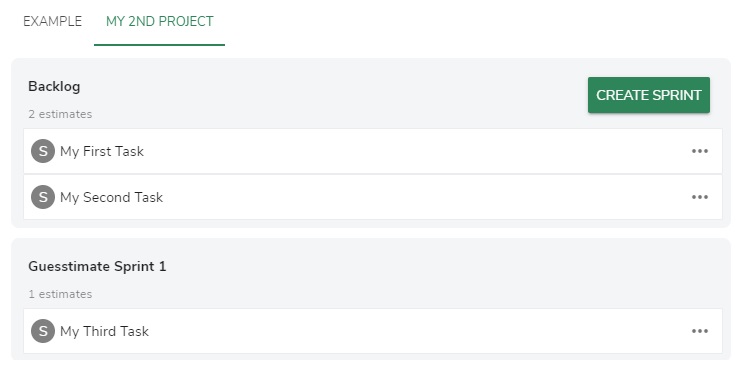
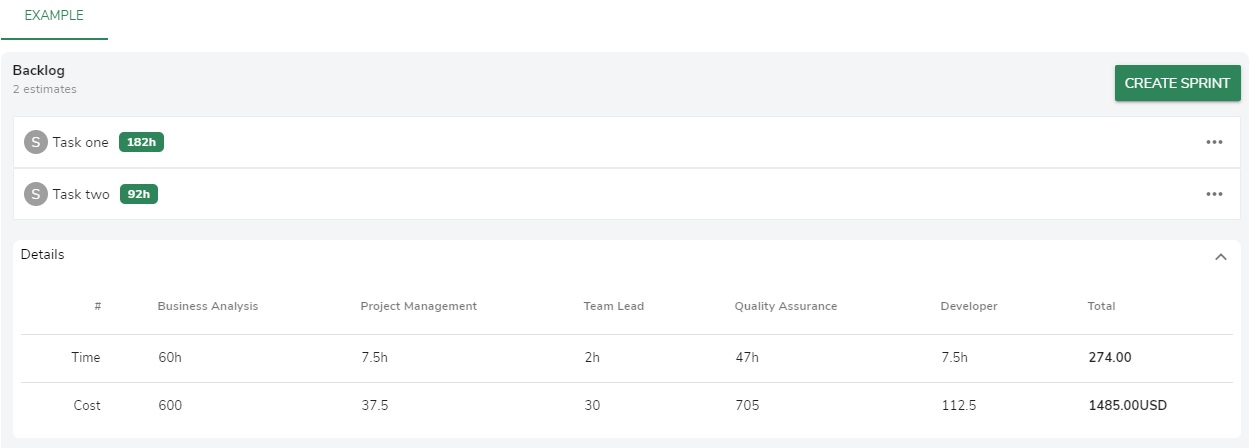
You can create a new sprint by clicking the button. A new Sprint will appear in your current project with a prefilled default name.
Note: To edit a sprint name, simply hover over it, tap it and type the new name.
Get detailed information about an estimate
Left click on an estimate to get more information about it. A similar menu will appear on the right side of the screen:
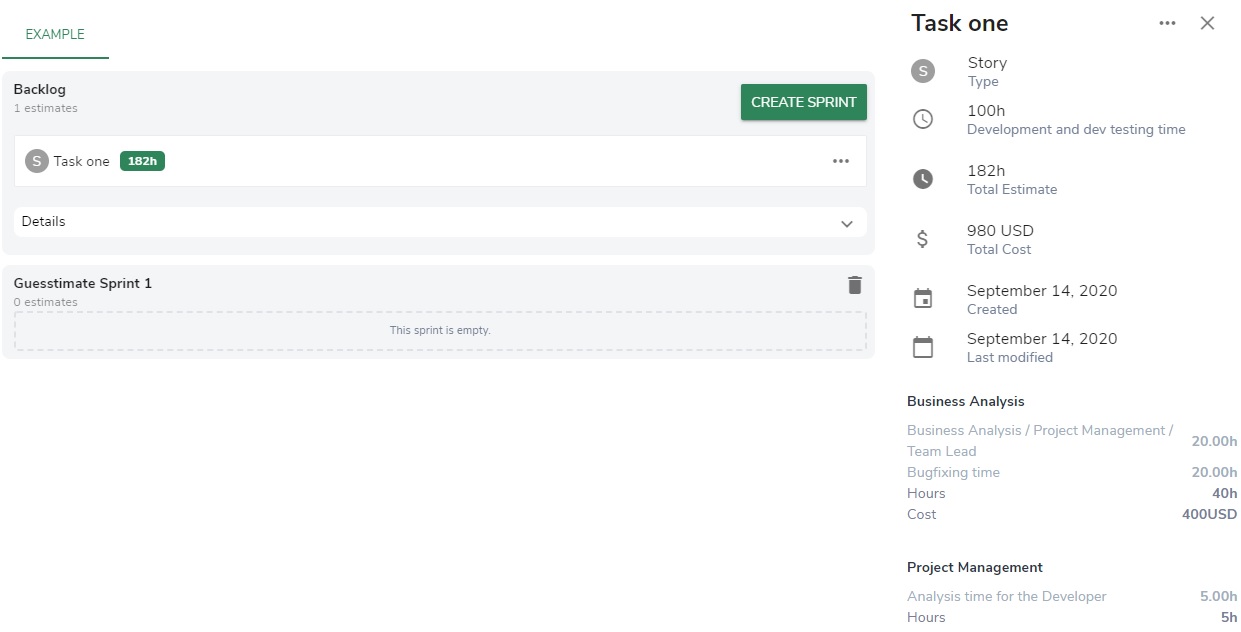
Get detailed information about a sprint
You can check your estimated time and cost for a sprint by clicking the details dropdown button at the bottom of a sprint.